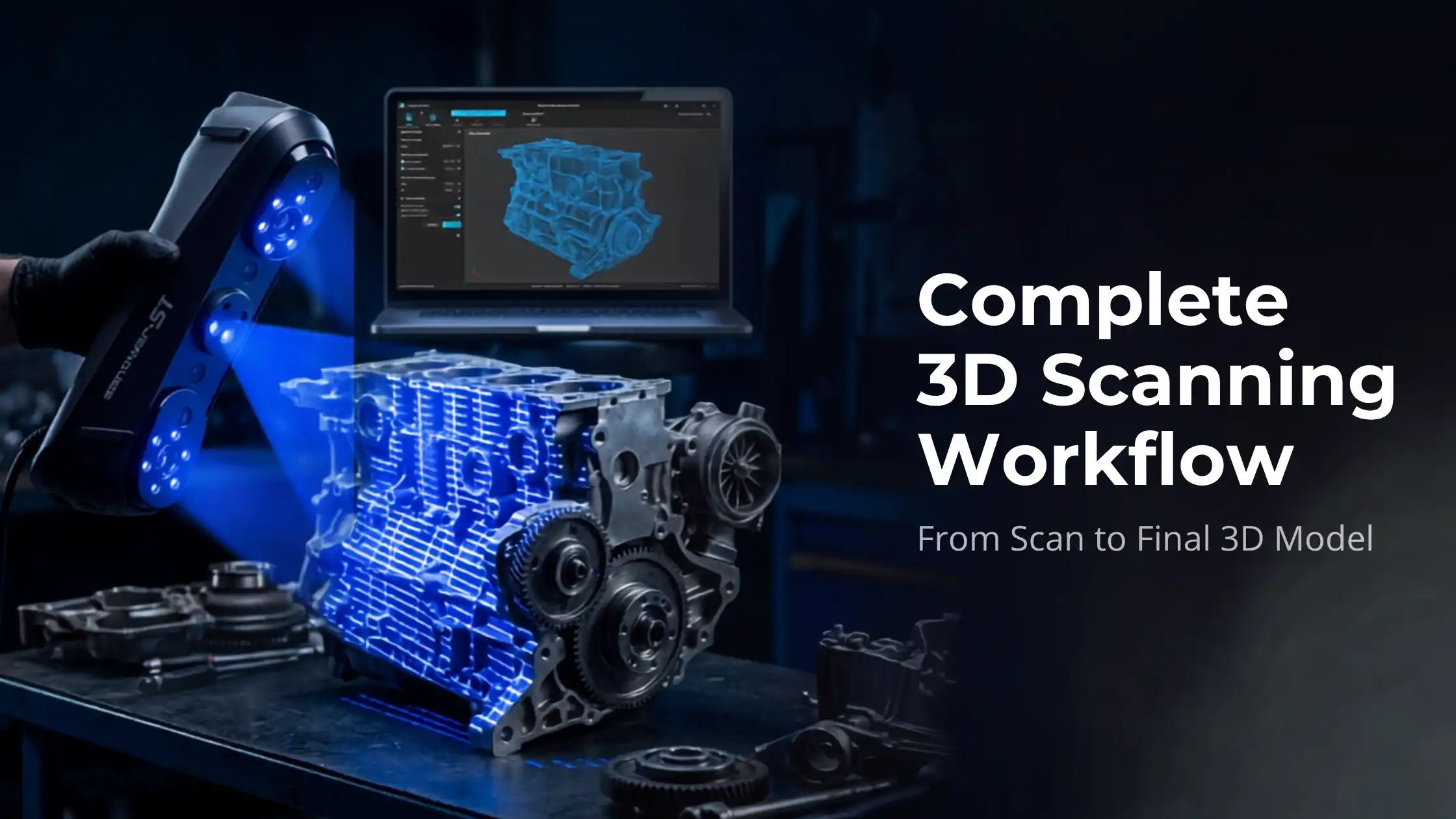
Capturing a 3D scan is the easy part. Turning that scan into a usable model, clean, watertight, and ready for printing, manufacturing, or analysis, is where most beginners get stuck. The 3D scanning workflow is the bridge between raw scan data and finished output.
This guide walks through the complete process, from data capture to final export, with the tools and techniques used by professionals across industries.
What Is a 3D Scanning Workflow?
A 3D scanning workflow is the structured sequence of steps that converts a physical object into a digital 3D model. It includes scanning, point cloud processing, mesh generation, cleanup, alignment, and (often) CAD conversion.
Skipping or rushing any step compromises the final output. A great scan with poor post-processing produces a worse model than an average scan handled well.
Complete 3D Scanning Workflow Step by Step
A professional 3D scanning workflow has seven distinct stages.
1. Data Capture (3D Scanning)
The first step is capturing the physical object using a 3D scanner. The choice of technology, structured light, laser, photogrammetry, affects accuracy, resolution, and speed.
Structured light scanners are excellent for small to medium objects with high detail demands
Laser scanners handle larger objects and difficult surfaces better
Photogrammetry uses photographs and is the lowest-cost entry point
Good capture practices: stable lighting, matte (non-reflective) surface, and adequate overlap between scan passes. Get capture right and the rest of the workflow becomes faster.
2. Point Cloud Processing
The scanner outputs raw point cloud data, millions of XYZ coordinates describing the object’s surface. This data is dense and noisy.
Point cloud processing involves:
Removing background and stray points
Filtering noise
Down-sampling for manageability
Aligning multiple scan passes
Tools like Geomagic, CloudCompare, and Polyworks handle this stage. Clean point clouds make every later step easier.
3. Mesh Generation
The cleaned point cloud is converted into a polygon mesh, connecting points into triangular faces that form a continuous surface. This is the point cloud to mesh conversion step.
Mesh density matters. Too few polygons lose detail; too many slow every subsequent operation. Most workflows generate a high-density mesh first, then decimate to a manageable size for editing.
4. Mesh Cleanup and Optimisation
Raw meshes contain holes, overlapping triangles, inverted normals, and surface noise. Mesh cleanup fixes:
Holes (filled either flat or with curvature continuity)
Overlapping or self-intersecting geometry
Inverted face normals
Surface roughness from scan noise
Floating disconnected fragments
A clean, watertight mesh is essential for 3D printing, simulation, or CAD conversion. This is one of the most time-consuming but most valuable stages of the workflow.
5. Scan Alignment and Merging
For larger objects, multiple scans from different angles must be aligned and merged into a single coherent model. Most modern scanning software uses two-stage alignment:
Coarse alignment, manually selecting reference points to roughly position scans
Fine alignment (ICP, Iterative Closest Point), automated precision alignment
Good alignment is invisible; bad alignment shows up as doubled surfaces, gaps, or step-edges. Reference markers (or “targets”) placed on the object before scanning dramatically improve alignment quality.
6. CAD Conversion (When Needed)
For engineering and reverse engineering applications, mesh data isn’t enough, you need parametric CAD. The scan-to-CAD conversion process recreates the geometry as solid CAD bodies using tools like Geomagic Design X, SolidWorks ScanTo3D, or Fusion 360.
The two main approaches:
Auto-surfacing, software fits surfaces to the mesh automatically (fast, lower precision)
Feature-based reconstruction, you manually identify and recreate features like holes, fillets, and flat faces (slower, fully parametric)
Engineering applications almost always require feature-based work; pure visualisation often gets by with auto-surfacing.
7. Final Model Export
The last step is exporting in the format your downstream use needs:
STL, for 3D printing
OBJ, for visualisation, rendering, VR
STEP / IGES, for CAD interchange and manufacturing
PLY, for further mesh processing
3MF, modern alternative to STL for slicers
Most professional workflows export multiple formats simultaneously to cover different downstream needs.
Tools and Software for the 3D Scanning Workflow
The most-used tools at each stage:
Capture: depends on the scanner, usually OEM software
Point cloud processing: Geomagic Wrap, CloudCompare, PolyWorks
Mesh generation and cleanup: Geomagic Wrap, MeshLab, Meshmixer (free, beginner-friendly)
Scan to CAD: Geomagic Design X, Fusion 360, SolidWorks ScanTo3D
STL repair: Meshmixer, Materialise Magics, Microsoft 3D Builder
Beginners can do an enormous amount with the free tools, MeshLab, Meshmixer, and CloudCompare cover most casual workflows.
Common Challenges in the 3D Scanning Workflow
Recurring problems and how to address them:
Noise in scan data, improve scanner calibration, use matte spray on glossy surfaces, scan in stable indirect lighting
Holes in the mesh, use scanning patterns with adequate overlap; fill holes intelligently in mesh software
Alignment errors, use physical reference markers; ensure scans share at least 30% overlap
Resolution mismatches, match scanner settings to the object’s smallest critical feature
A disciplined capture stage prevents most processing-stage headaches.
How to Improve Accuracy in 3D Scanning
For the highest-fidelity results:
Calibrate the scanner before every important session
Maintain constant scanning distance (per scanner spec)
Use reference markers on the object
Capture at multiple angles with generous overlap
Apply matte spray to reflective surfaces
These steps compound. Each one improves accuracy by a few percent; together they decide whether the final model is usable for engineering.
Use Cases of the 3D Scanning Workflow
A clean 3D scanning workflow powers applications across industries:
Manufacturing & quality inspection, comparing scanned parts against CAD nominals
Reverse engineering, recreating CAD for legacy parts or competitor analysis
Healthcare, patient-specific prosthetics, dental models, surgical planning
Heritage and museums, digital archiving of irreplaceable artefacts
Visual effects and gaming, high-fidelity asset capture
Digital twin creation, operational replicas for monitoring and simulation
The technology is mature; the workflow discipline is what separates good outputs from great ones.
Why a Structured Workflow Matters
A structured workflow delivers three benefits:
Repeatability. Two operators on the same scanner produce the same model.
Quality control. Each stage has acceptance criteria before moving to the next.
Efficiency. Less time troubleshooting the same problems repeatedly.
For professional use, especially in regulated industries like aerospace, medical, or automotive, the workflow is as important as the hardware.
Conclusion
3D scanning is no longer just for engineers with industrial-class hardware. Modern handheld scanners and accessible software have brought professional-grade workflows within reach of designers, makers, and small manufacturers.
Master the seven-stage workflow, capture, point cloud processing, mesh generation, cleanup, alignment, CAD conversion, export, and you’ll handle almost any 3D scanning project with confidence.
Explore industrial-grade 3D scanners on 3idea Technology: https://www.3idea.in/products/3d-scanner
The right scanner plus a disciplined workflow unlocks one of the most powerful capabilities in modern digital manufacturing.