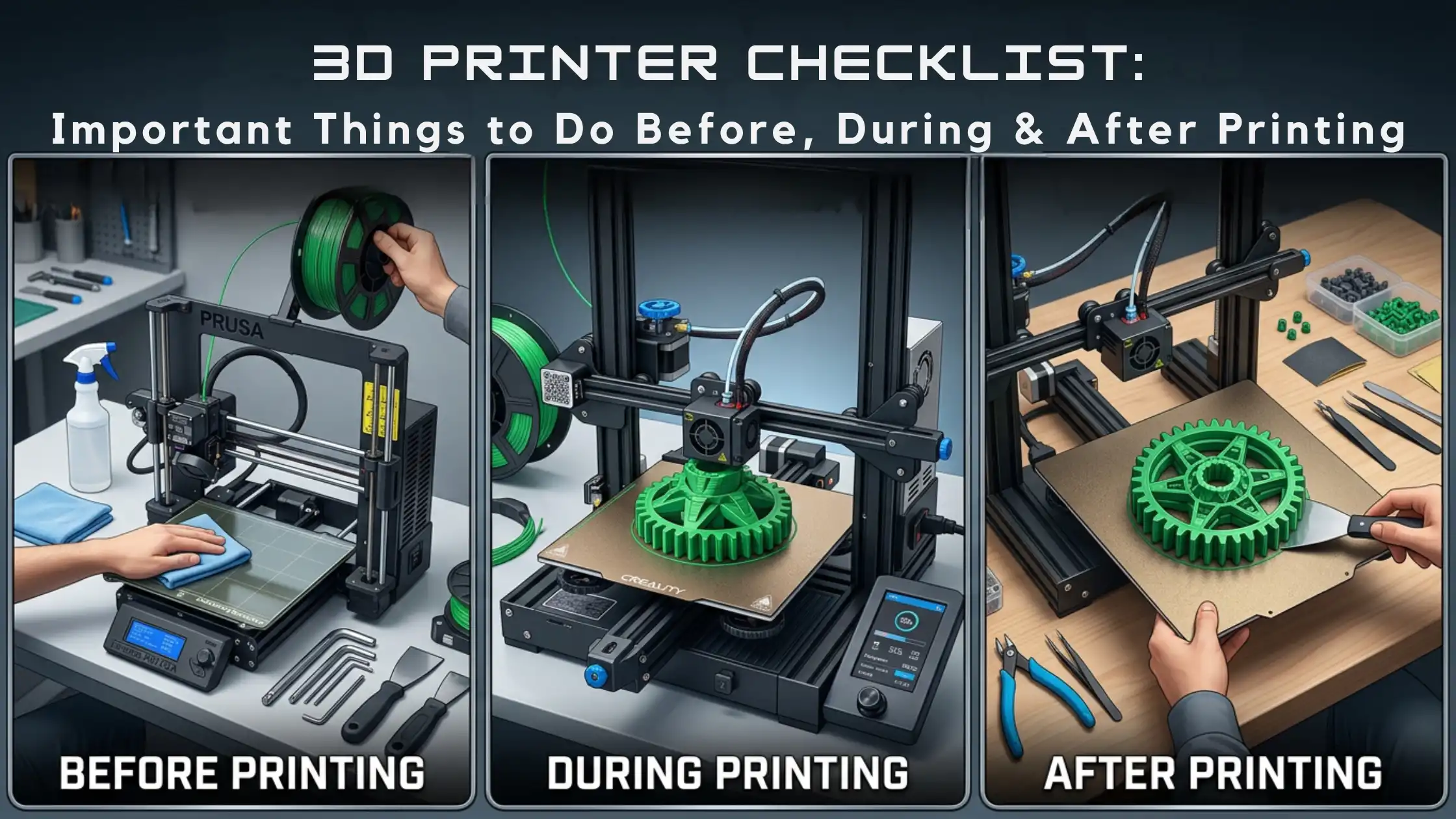
A successful 3D print doesn't begin when you press Start.
Before the printer starts moving, several small checks can determine whether your print succeeds or fails. Is the build plate clean? Is the filament suitable and dry? Is the nozzle clear? Are the slicer settings correct? Is the first layer going to stick properly? Moreover, once the print starts, you still need to watch for problems such as warping, stringing, layer shifts or inconsistent extrusion. That is why a simple 3D printer checklist can make everyday FDM printing more reliable. Instead of troubleshooting after several hours of wasted filament, you can catch many problems early.
This guide covers the important things to check before, during and after 3D printing, along with safety, maintenance and troubleshooting tips.

Quick 3D Printer Checklist
Before Printing
Check the printer condition
Clean the build plate
Check the nozzle
Load the correct filament
Check filament condition
Verify print and bed temperatures
Check bed leveling or Z offset
Confirm slicer settings
Check model orientation and supports
Confirm material and print time
Make sure the build plate is installed correctly
During Printing
Watch the first layer
Check layer adhesion
Look for unusual sounds
Check extrusion consistency
Monitor temperature
Watch for warping, stringing or layer shifts
Keep the print area safe
Monitor long prints when necessary
After Printing
Allow the printer and build plate to cool
Remove the print carefully
Inspect the finished model
Remove supports
Clean the build plate
Check the nozzle and extruder
Store filament properly
Note any problems for the next print
Before You Start 3D Printing

1. Check Your 3D Printer
First, take a quick look at the printer before starting a job. Check the nozzle, extruder, build plate, belts, fans, cables and filament path.
You do not need to disassemble the printer every time. Instead, inspect it and address anything that looks unusual.
Inspect first; repair only when something actually requires attention.
2. Clean the Build Plate
Next, check the print surface. Dust, fingerprints and leftover filament can affect first-layer adhesion.
Therefore, clean the build plate using the method recommended for your specific print surface. A clean and properly prepared bed gives the first layer a better chance of adhering consistently.
3. Check the Filament
Filament preparation is another important part of your 3D printer setup checklist.
Before printing, confirm that you have:
The correct material
The correct filament diameter
Enough filament for the job
A properly loaded filament path
A suitable spool
Filament that has been stored correctly
Also, pay attention to moisture. Moist filament can contribute to popping or crackling, inconsistent extrusion, stringing and rough surfaces.
4. Confirm the Nozzle and Material
Your nozzle size, material, temperature, layer height and print speed work together.
For example, switching from PLA to PETG or ABS may require different temperature and cooling settings. Therefore, always verify that your filament profile matches the material you are actually using.
5. Check Bed Leveling and Z Offset
The first layer plays a major role in print success. If the nozzle sits too far from the bed, the filament may not adhere properly. On the other hand, if it sits too close, extrusion can become excessively compressed. Even when your printer has automatic bed leveling, you should still watch the first layer and confirm that it looks correct.
6. Check Your Slicer Settings
Before sending the G-code to the printer, review your slicer settings.
Pay particular attention to:
Printer profile
Filament profile
Nozzle size
Layer height
Infill
Wall count
Supports
Temperature
Print speed
Cooling
Build plate adhesion
Additionally, check the estimated print time and material usage. This becomes especially important for long prints.
7. Check Model Orientation and Supports
Model orientation affects more than appearance. It can influence strength, surface quality, support requirements, print time and material consumption.
So, before printing, ask yourself whether the current orientation makes sense for the part. Likewise, check whether supports are actually necessary and whether they are positioned around the model's overhangs and difficult areas.
What to Check During 3D Printing

Watch the First Layer: The first layer is one of the most useful checkpoints in your 3D printing checklist. A good first layer should show consistent extrusion, proper adhesion and even lines without obvious gaps. If you notice corners lifting, gaps between lines, excessive squishing or the nozzle dragging through the material, stop and investigate before allowing a long print to continue.
Watch for Warping: Warping occurs when parts of the print lift away from the build plate. Possible causes include poor adhesion, unsuitable temperatures, cooling, material characteristics or drafts around the printer. Therefore, check the printer environment as well as your slicer settings instead of changing only one setting immediately.
Look for Stringing: Thin strands of filament between printed areas are commonly known as stringing. Temperature, retraction, filament moisture and travel settings can all contribute. So, check the complete setup before making adjustments.
Watch for Layer Shifts: A sudden horizontal displacement in the print can indicate mechanical or motion-related problems. Check for possible obstructions, loose belts, collisions, excessive speed or acceleration, and other mechanical issues.
Listen for Unusual Sounds: Clicking, grinding, repeated knocking or skipping sounds should not simply be ignored. If the printer suddenly sounds different, pause when appropriate and inspect the machine before continuing.
3D Printer Safety Checklist

Safety should remain part of every print routine.
Keep your hands away from the hot nozzle and heated bed, and keep clothing or objects away from moving components.
Also, inspect cables and connectors for visible damage. Pay attention to unusual smells or signs of overheating.
Furthermore, ventilation matters, particularly when printing materials that can produce noticeable odors or emissions. If your printer has an enclosure, continue following the manufacturer's safety instructions.
Finally, do not assume that every print is automatically safe to leave unattended. Understand your printer, material and environment, and follow the manufacturer's recommendations.
What to Do After Your 3D Print Finishes

Once the print is complete, your checklist is not finished.
First, allow the printer and build plate to cool as appropriate. Then remove the print carefully instead of forcing a model that remains firmly attached.
Next, inspect the finished part for:
Warping
Stringing
Layer adhesion
Surface quality
Dimensional issues
Missing features
Support marks
After that, remove supports, brims or rafts where necessary. Finally, clean the build plate and prepare the printer for the next job.
3D Printer Maintenance Checklist

Regular maintenance can help you identify problems before they affect print quality.
After Every Print or As Needed
Clean the build plate
Remove filament residue
Check the nozzle
Periodically
Check belts
Inspect screws
Check fans
Inspect the extruder
Clean relevant moving components
Lubricate components when recommended by the manufacturer
When Print Quality Changes
If your prints suddenly look different, check the nozzle, filament, first layer and mechanical components. Also, revisit your slicer settings before assuming that the printer itself has failed.
Common 3D Printing Problems and What to Check
This troubleshooting approach is useful because it helps you identify the likely source of a problem instead of changing multiple settings at once.
Choosing an FDM 3D Printer That Makes Printing Easier
Modern FDM printers can simplify parts of the preparation and printing process through features such as automatic calibration, bed leveling, monitoring, filament management and multi-color workflows. For example, 3Idea's current range includes models such as the Creality Ender-3 V3 SE, Anycubic Kobra Neo, Anycubic Kobra X, Snapmaker U1, Bambu Lab P2S Combo and Bambu Lab X2D Combo. These can be considered based on the user's required workflow, automation needs and printing applications. However, the right printer depends on your requirements. Beginners may prioritize simple setup, while hobbyists may focus on material flexibility and print quality. Similarly, businesses and print farms may place greater importance on repeatability, maintenance and consistent workflows.
A Simple Routine to Reduce 3D Print Failures
When you are unsure what to check before a print, remember this five-step routine:
Printer ? Filament ? Slicer ? First Layer ? Monitor
First, prepare the printer. Then, verify the filament. Next, review the slicer settings. After that, watch the first layer carefully. Finally, monitor the print when necessary.
This simple routine can prevent many avoidable problems and make your 3D printer checklist easier to follow every time.
3D Printer Checklist You Can Save
BEFORE PRINTING
? Printer checked
? Build plate clean
? Correct and dry filament loaded
? Nozzle checked
? Bed leveling/Z offset checked
? Slicer profile checked
? Supports checked
? Enough material available
? Print area clear
DURING PRINTING
? First layer checked
? Adhesion confirmed
? No unusual sounds
? Extrusion consistent
? No warping or stringing
? Long print monitored when necessary
AFTER PRINTING
? Printer and bed cooled
? Print removed safely
? Print inspected
? Supports removed
? Build plate cleaned
? Filament stored properly
? Printer ready for the next job
Conclusion
A good 3D printer checklist does not need to be complicated. Instead, it should help you build a repeatable routine.
Before printing, prepare the printer, build plate, filament and slicer. During printing, focus on the first layer, adhesion, extrusion and print behavior. After printing, inspect, clean and maintain the machine.
Most importantly, use the checklist consistently. Over time, these small checks can make your FDM workflow more predictable, reduce avoidable failures and help you get better results from your 3D printer.
If you are looking for an FDM printer that fits your workflow, you can explore the range of 3D printers available at 3Idea Technology and compare models based on your printing requirements, experience level and intended application.
Explore 3D Printres: https://www.3idea.in/category/3d-printers
Shop on the App: https://play.google.com/store/apps/details?id=com.threeidea&pcampaignid=web_share
https://apps.apple.com/in/app/3idea/id6762472249
Frequently Asked Questions
Q. What should I check before starting a 3D print?
Ans. Check the build plate, nozzle, filament, bed leveling, slicer settings, supports, temperatures and printer condition.
Q. What should I check while my 3D printer is printing?
Ans. Watch the first layer, adhesion, extrusion, temperature and any unusual sounds or movement.
Q. What should I do after a 3D print finishes?
Ans. Allow the printer to cool, remove the model carefully, inspect the print, clean the build plate and store the filament properly.
Q. Why is my first layer not sticking?
Ans. Check the build plate, Z offset, bed temperature and print-surface condition.
Q. Why does my 3D print keep failing?
Ans. Check the printer, filament, slicer settings, first-layer adhesion and mechanical condition before changing multiple settings.
Q. How often should I maintain my 3D printer?
Ans. Perform basic checks regularly and carry out deeper maintenance according to printer usage and the manufacturer's recommendations.
Q. How should I store 3D printer filament?
Ans. Store filament in a suitable dry environment and protect moisture-sensitive materials from humidity.
Q. Should I monitor my 3D printer while printing?
Ans. Long or unfamiliar prints should be monitored appropriately, while users should always follow the printer and material manufacturer's safety guidance.
Q. What is the most important part of a 3D printer checklist?
Ans. The first layer is one of the most important checkpoints because it can reveal adhesion and setup problems before a long print progresses.
Q. Can a 3D printer checklist help reduce failed prints?
Ans. Yes. Checking the printer, filament, slicer, first layer and print environment can help identify common causes of print failure early.